All posts by admin

ESET Endpoint Security

ESET is an antivirus company which has been around for three decades and offers innovative technology that their customers can rely on to protect their devices. ESET is currently protecting 111,000,000+ customers worldwide with the coverage of over 200+ countries!

What is ESET’s end point security?

Endpoint security is the protection of your endpoints against cyber attacks. This means securing your laptops, desktops, smartphones and other endpoints specifically, as they are vulnerable access points for viruses, malware and other cyberthreats.

Endpoint security has a number of different forms, including antivirus software and firewalls. ESET’s endpoint protection uses a multilayered approach to securing endpoints like mobile devices and laptops.


Why have we decided to start offering it for our customers?

We are seeing an increase in ransomware attacks in recent months and we are advising customers to change their virus protection from Windows Defender to something else.

Hackers are using PowerShell scripts to disable Windows Defender which then allows them to download ransomware tools and execute attacks on servers. Unfortunately this quite easy to do and it’s a very effective trick for hackers to get control of a server. Once the hacker does this they are able to encrypt all the data on the server and demand a payment by Bitcoin.

We are recommending ESET Endpoint Protection to all our customers (Web World are an official partner), the cost of this software is €100+VAT per year per server.


FAQ


Is ESET managed from the unified console?
All ESET endpoints, including endpoints and mobiles, can be managed from our cloud-based unified management console ESET PROTECT.

How can ESET stop file less attacks?
ESET endpoint protection platforms have mitigations in place to detect malformed or hijacked applications to protect against file less attacks. 

How can ESET block targeted attacks?
ESET’s endpoint protection solutions use threat intelligence information based on their global presence to prioritize and effectively block the latest threats prior to their delivery anywhere else in the world. 

How can ESET safeguard the web browser?
Designed to protect an organization’s assets with a special layer of protection that focuses on the browser, as the main tool used to access critical data inside the intranet perimeter and in the cloud.

How can ESET improve a network attack protection?
ESET Network Attack Protection improves detection of known vulnerabilities on the network level.

How can ESET improve a botnet protection?
ESET Botnet Protection detects malicious communication used by botnets, and at the same time, identifies the offending processes. 


If you have any questions about the ESET end point security please email us at support@webworld.ie.


Weebly Website Builder

Weebly is an eCommerce service that lets you start your own online business, whether it be from scratch or taking your in-person business online. Their powerful tools make it easy to build a professional site and grow your business with integrated marketing and advanced analytics. 

MORE

What is cPanel?

cPanel is a popular control dashboard that helps you manage your web hosting server using a very friendly graphical interface. It’s especially popular with shared hosts, where it’s the solution provided by most affordable hosting providers.

MORE

Setting up emails on Outlook 2019

When first accessing an email account through a desktop most of the customers would use and email application like “Outlook” or “Thunderbird”. To use your email with these applications you must first set it up. With this guide, you can set this up by following these steps.

HOW TO START

1/ Please log in into your client area at: Client Area​
2/ Go to ==> ‘Services’ ==> ‘My Services’
3/ Click on your hosting plan
4/ Go to cPanel (top-left corner)
5/ Go to e-mail accounts (Click the e-mail accounts icon on the bottom)
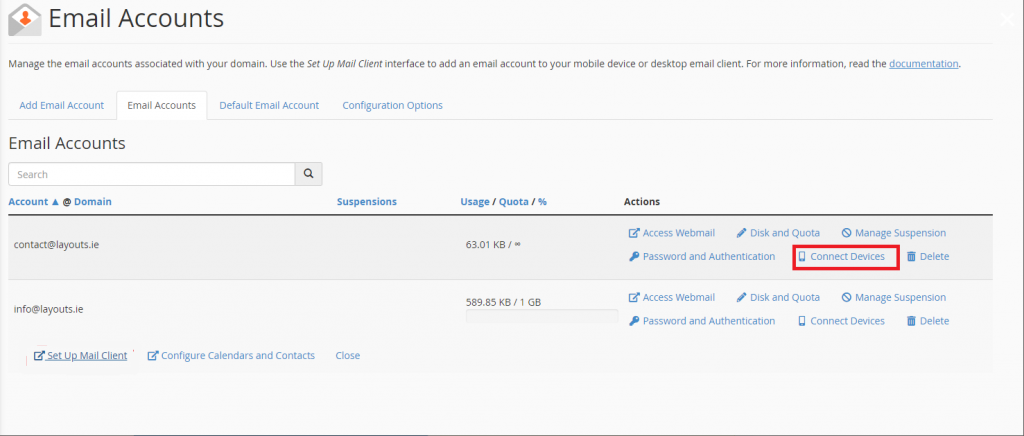
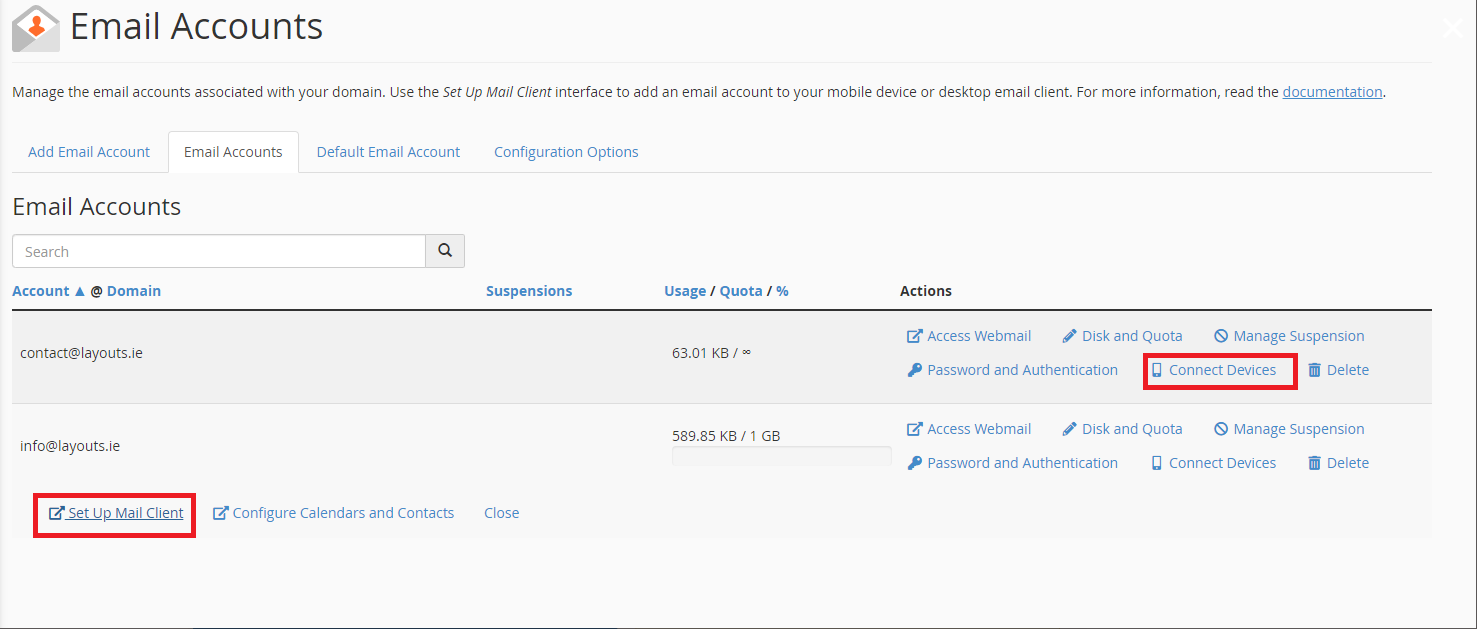
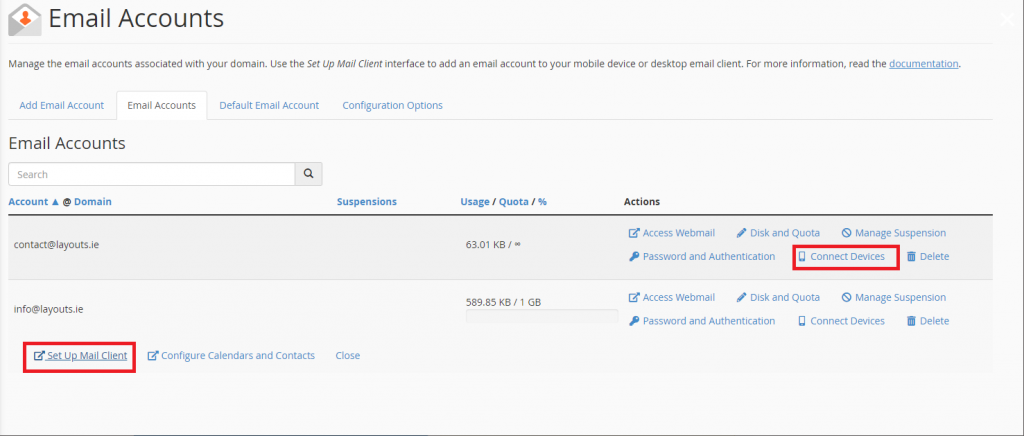
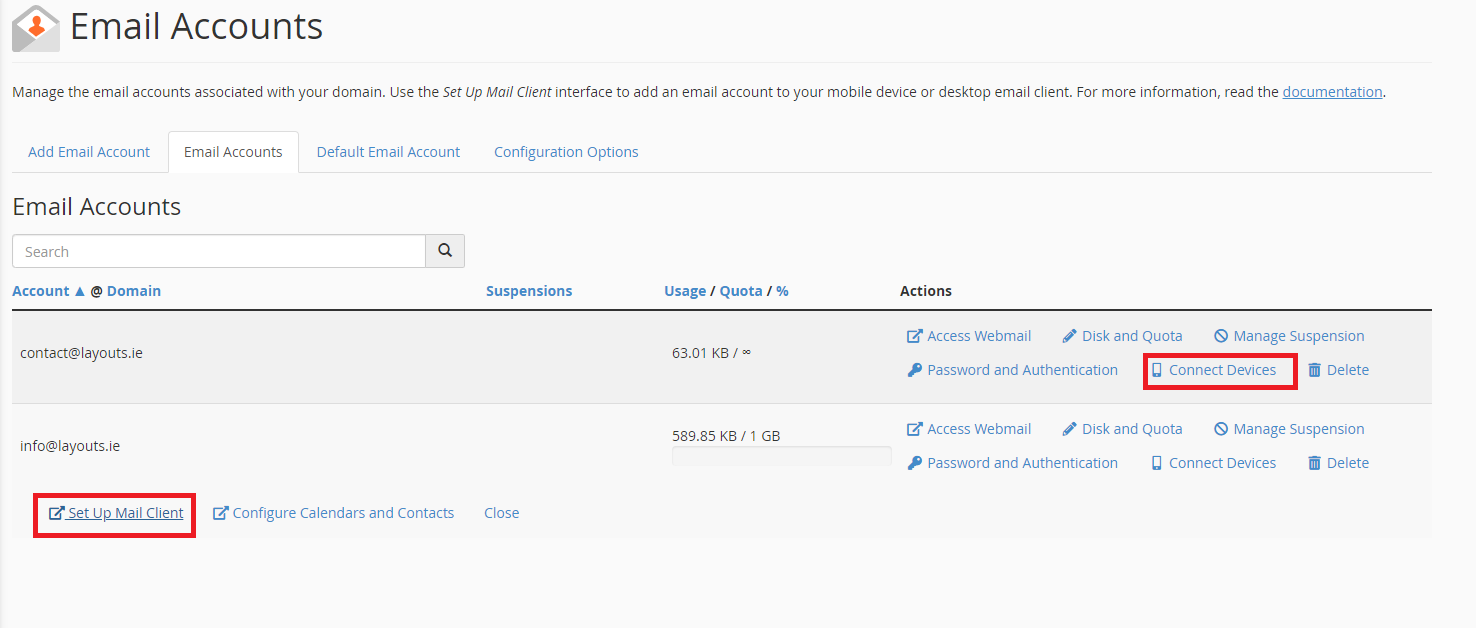
You should now see your email accounts (if any have been created). Select the email account to set up by clicking ‘Connect devices’

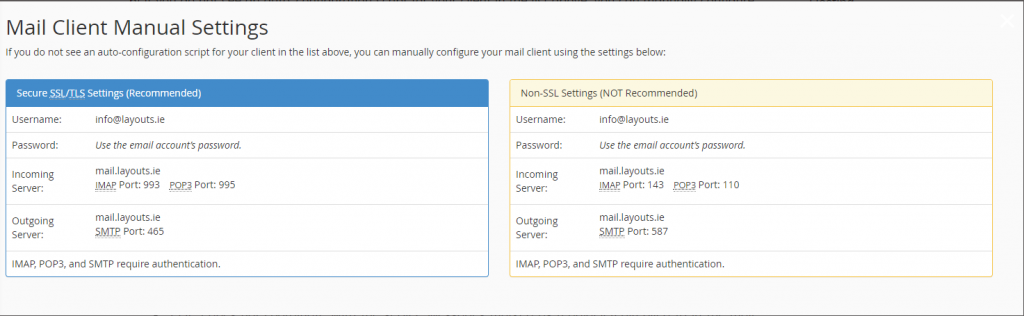
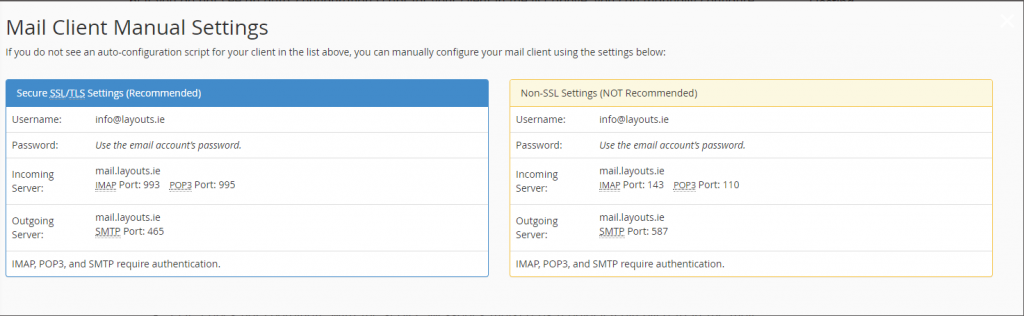
If an auto config script does not appear for your client in the list above, you can do this manually by using the following steps below:

​Notes (before we begin):
IMAP email access coordinates between the server and your mail application. Messages that have been read/deleted/replied to will show up as such, both on the server and in the mail application.
POP3 does not coordinate with the server. Messages marked as read/deleted/replied to in the mail application will not show up as such on the server. This means that future mail downloads with POP3 will show all messages as unread.
Outgoing mail is sent using SMTP.

We recommend using POP3 over SSL/TLS or IMAP over SSL/TLS since they provide increased security for your interactions with the remote mail server.

SECURE OR NOT SECURE

​Secure SSL/TLS settings are recommended, but if the verification with Outlook isn’t successful, please do not use SLL recommended settings (as shown in the example below)

HOW DO I ENABLE SMTP AUTHENTICATION?

An example: Microsoft Outlook® 2019 (PC)

Run Outlook

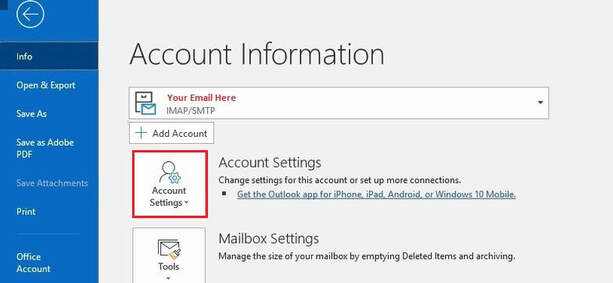
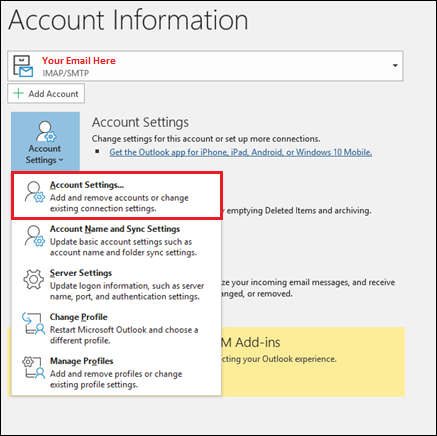
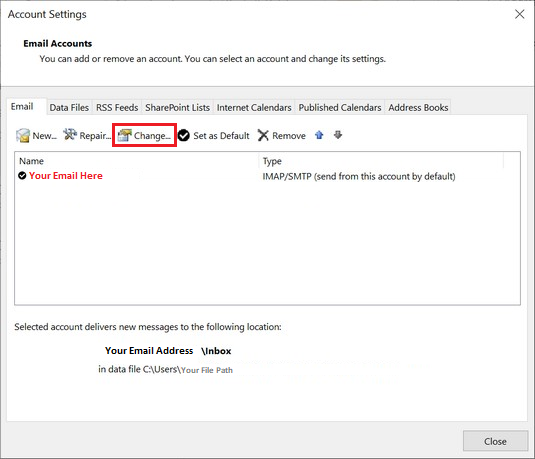
Go to ‘File ==> ‘Account Settings’

​Select the account you are looking to modify & click ‘change’

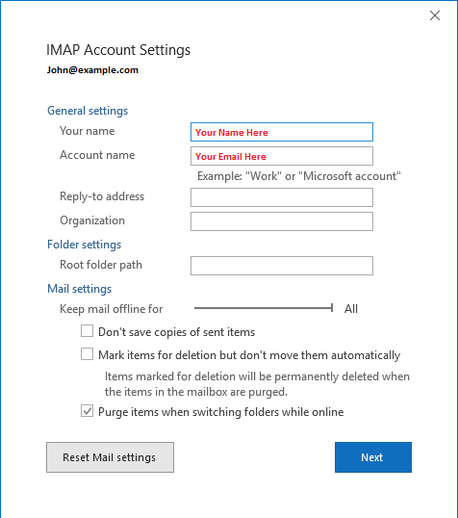
You can change any settings you wish in the Accounts Dialog Box:

​In order to change the mail server settings, the repair command must be used as follows:
From the Account Settings dialog box, click on the account and then click Repair.
Click ‘Advanced Options’
Click on the ‘Let me repair my account manually’ check box. After that click on ‘Repair’
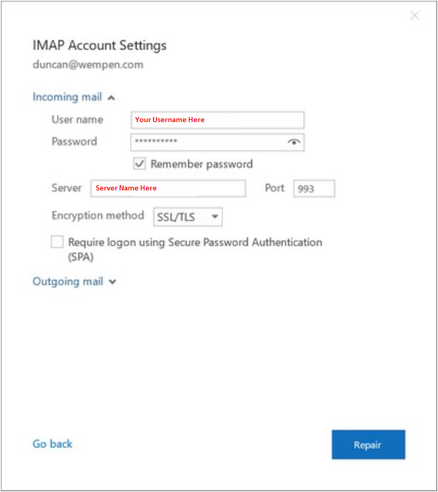
Lastly, change the incoming mail server settings as follows:

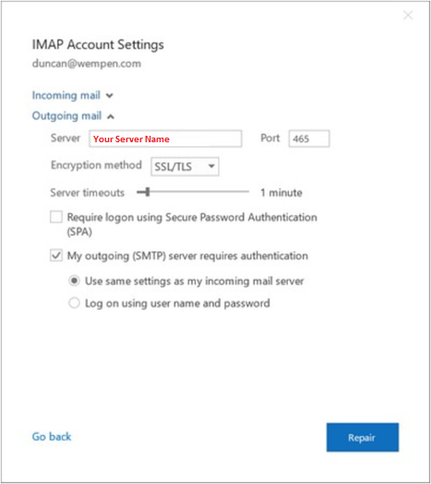
​Then click the blue ‘Outgoing Mail’ drop-down & make changes to them as needed:

​(Please ensure the “Server” is the same as the server you received in the Blue box at the beginning of this tutorial, you can find this box in cPanel as mentioned previously. Ensure that the “Port” is also the same as the one in the Blue box.

Finally, select ‘Repair’ to apply the changes, and then click ‘done’

Setting up emails on Outlook 2016

When you first access an email account through a desktop most of the customers would use and email application just like “Outlook” or “Thunderbird”. In order for you to use your email with these applications you need to set it up. With this guide, I will show you step by step how to set it up for you.

HOW TO START

1/ Please log into your client area.
2/ At the top of the client area, where the blue bar runs across, click into “Services” -> “My Services”
3/ Click into your designated Hosting Plan.
4/ Click into cPanel (Top-left hand corner).
5/ Go to Email Accounts (Click the email accounts icon in the icon menu).
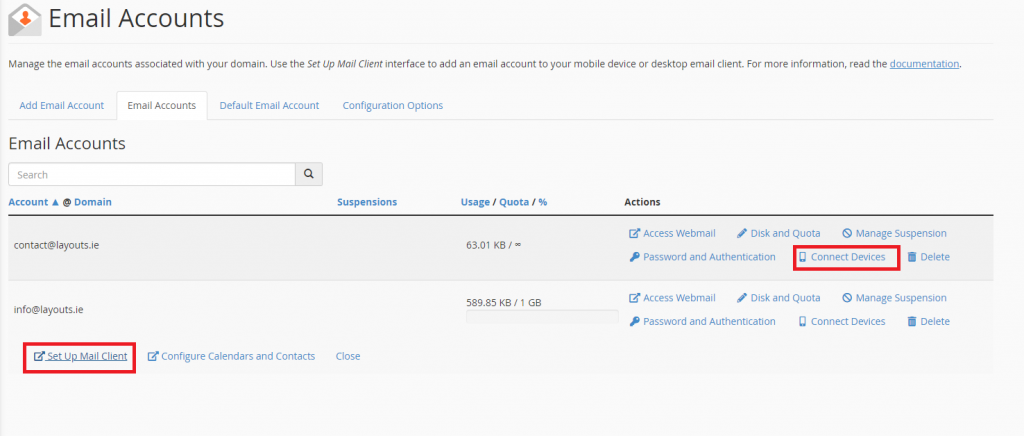
At this stage you should see your email accounts, unless you have no email accounts then you can create one from there on. When you find the email account you wish to connect to the email app, click “Connect Devices”, followed by “Set Up Mail Client”.


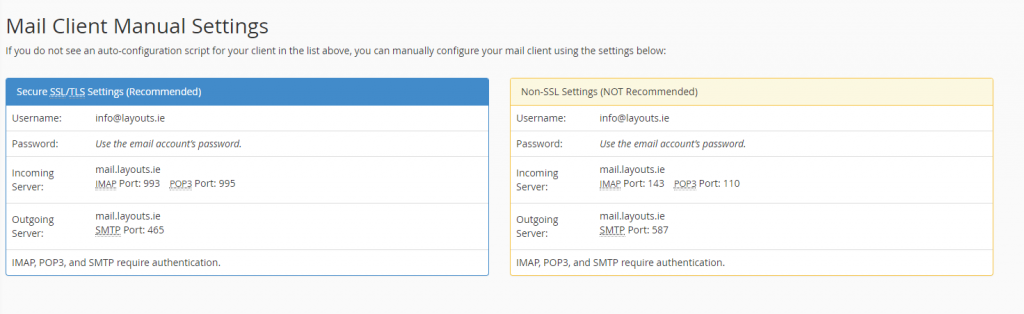
This should bring you into a page with “Mail Client Manual Settings”. You should have two boxes, one in Blue and the other one in Orange. The blue one should have the header “Secure SSL/TLS Settings (Recommended)”. For the set up we will be using the details in this box.

SOME IMPORTANT NOTES BEFORE WE BEGIN

IMAP email access coordinates between the server and your mail application. Messages that have been read/deleted/replied to will show up as such, both on the server and in the mail application.
​​
POP3 does not coordinate with the server. Messages marked as read/deleted/replied to in the mail application will not show up as such on the server. This means that future mail downloads with POP3 will show all messages as unread.

Outgoing mail is sent using SMTP.

We recommend using POP3 over SSL/TLS or IMAP over SSL/TLS since they provide increased security for your interactions with the remote mail server.

Important: This only applies to customers hosted on cPanel.

SECURE OR NOT SECURE?
Secure SSL/TLS settings are recommended, but if the verification with Outlook isn’t successful, please use the not recommended settings.

HOW DO I ENABLE SMTP AUTHENTICATION?

An example: Microsoft Outlook® 2016 (PC)

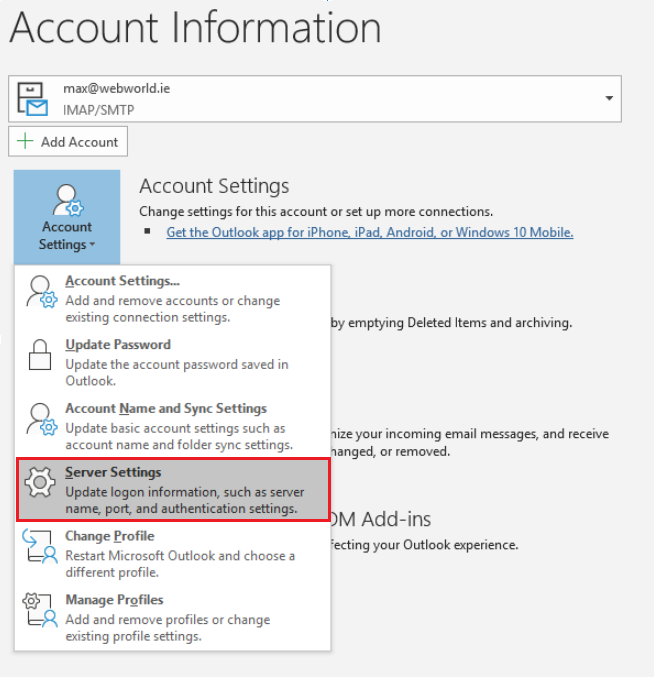
From the “File” menu, choose “Account Settings”, click once and then click onto “Server Settings”.

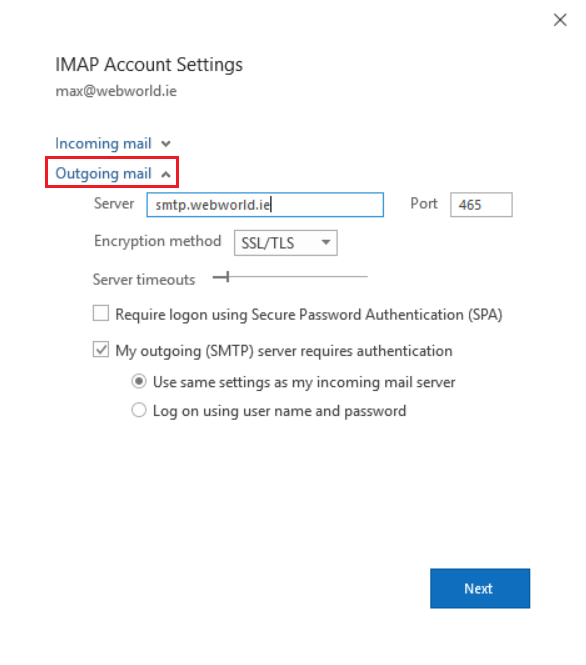
Click “Outgoing mail” in blue font and a menu should appear.

Make sure that “My outgoing (SMTP) server requires authentication” box is ticked like in the picture above. Also be sure that the “Server” is the same as the one that was given to you in the Blue box at the beginning of this tutorial, you can find this box in cPanel as mentioned previously. Make sure that the “Port” is also the same as the one in the Blue box.

Setting up Emails on Outlook 2010

When you access an email account through a desktop email application email application will require specific information about your email account. You can use the auto-configure options to attempt to automatically configure your email application. If the available options are not compatible with your application, you will need to use the manual settings information.

HOW TO START

1/ Please log in into your client area at:
2/ Go to ==> Services
3/ Click the hosting plan header
4/ Go to cPanel (top-left corner)
5/ Go to e-mail accounts (Click the e-mail accounts icon on the bottom)

When you see all your email accounts, select the correct one and click: “Connect devices” link, and “Set Up Mail Client”


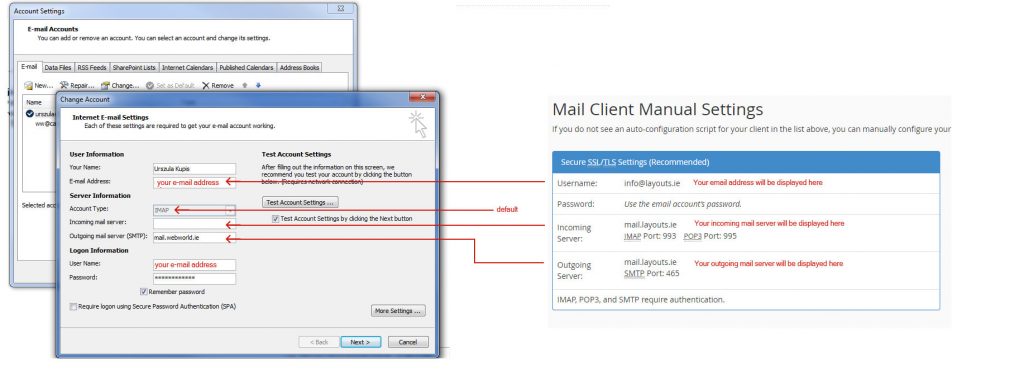
6/ If you do not see an auto-configuration script for your client in the list above, you can manually configure your mail client using the settings below (please see an example below) :


Notes:
IMAP email access coordinates between the server and your mail application. Messages that have been read/deleted/replied to will show up as such, both on the server and in the mail application.
POP3 does not coordinate with the server. Messages marked as read/deleted/replied to in the mail application will not show up as such on the server. This means that future mail downloads with POP3 will show all messages as unread.
Outgoing mail is sent using SMTP.
We recommend using POP3 over SSL/TLS or IMAP over SSL/TLS since they provide increased security for your interactions with the remote mail server.


SECURE/ NOT SECURE?

Secure SSL/TLS settings are recommended, but if the verification with Outlook isn’t successful, please use NOT SLL settings (an example will be provided below)


HOW DO I ENABLE SMTP AUTHENTICATION?

An example: Microsoft Outlook® 2010 (PC)

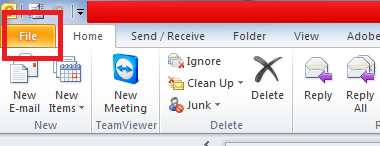
From the File menu, choose “Account Settings”

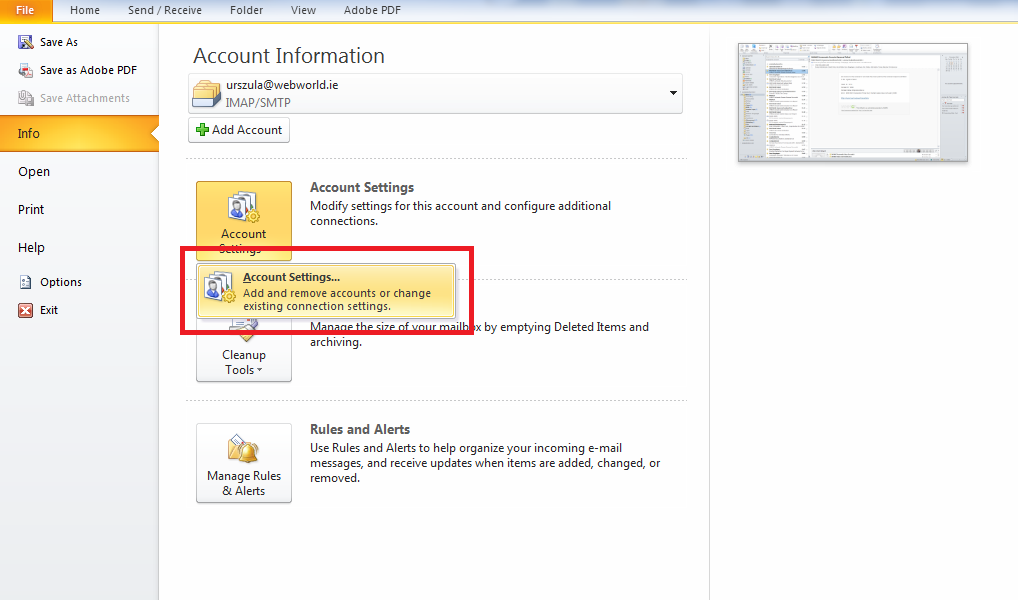
Account settings: Click once to display a pop-up window at the bottom:

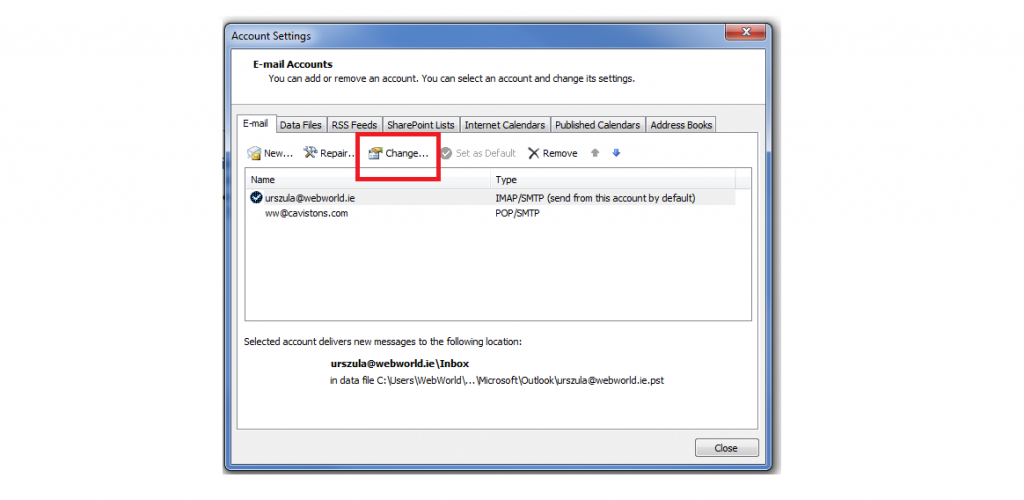
Select your Email account and click the “Change” button above:

Please check/enter all details from

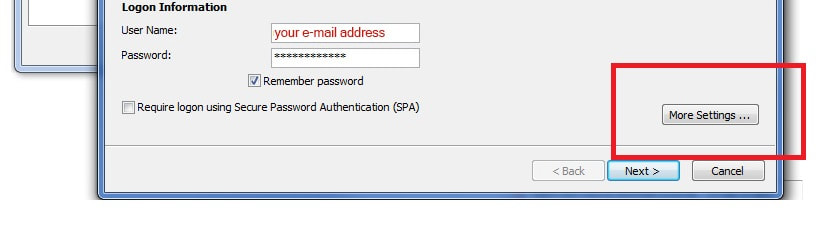
Please click “more settings”

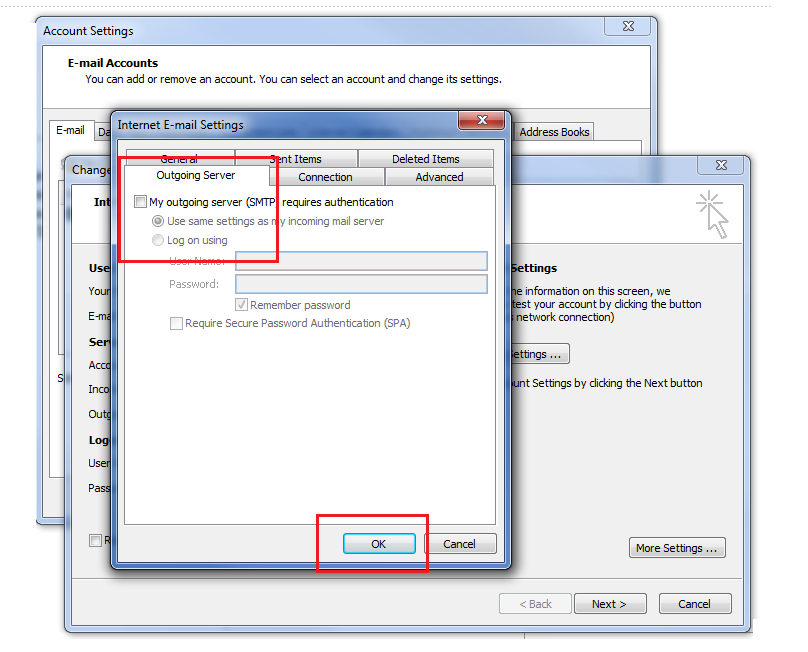
Please go to “Outgoing Mail Server” and ensure that the box “My outgoing server (SMTP) requires authentication” is unchecked

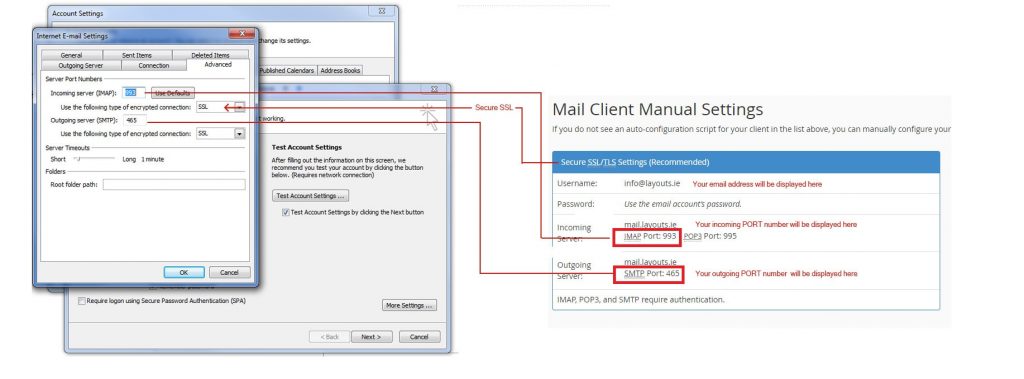
In the “Advanced” section, please set up PORT numbers:

Notes:
Ports numbers are depends from the authentication settings.
Let’s use the port numbers for secure SSL/TSL or Non-SSL settings
EMAIL SOFTWARE YOU CAN SET UP TO ACCESS YOUR E-MAIL ON YOUR PC & MAC
Email software you can set up to access your e-mail on your PC
Microsoft Outlook®; Express (PC)
Windows® Mail (PC)
Microsoft Outlook® 2010 (PC)
Outlook® 2007 (PC)
Microsoft Outlook® 2003 and 2002/XP (PC)
Outlook® 2000 and Outlook® 98 (PC)
Eudora® 6.x (PC)
Netscape Messenger® 7.x (PC)
Netscape Messenger® 4.x (PC)

Email software you can set up to access your e-mail on your Mac:
Mail for OS X (Mac)
Eudora 6.x (Mac)
Microsoft Outlook Express for OS 9 (Mac)
Mozilla Thunderbird​

If you have any questions, or if you need more information, do not hesitate to contact us please: support@webworld.ie

Setting up Email Settings on Outlook

How to set up Outlook on Windows with different versions.

When you first access an email account through a desktop most of the customers would use and email application just like “Outlook” or “Thunderbird”. In order for you to use your email with these applications you need to set it up. With this guide, I will show you step by step how to set it up for you.

MORE

Registering a .IE domain?

We receive emails from our long term and new customers asking us the question, “Can you register a .ie domain for me”.

Of course we can register it for you, in fact, it’s so easy that all you need to do is send us 1 email with sufficient information and the rest is done! Please note below which information you need to send us in regards to the type of domain you are registering, please send all queries for registration to accounts@webworld.ie.

First, you need to let us know what the domain name will be, for example let’s go with this domain name: ilovetacotuesdays.ie. Quite complex, I know.
We check if it’s available, if it is, we generate an invoice for you for 1 year unless you want it to be renewed for more, the max we can do is 10 years.

​After you pay the invoice we ask you to send an email with the information required.

Please refer to the information below and send the correct information to support@webworld.ie


BUSINESS PURPOSE

We will need only ONE of the following documents to see your connection with Ireland as a company or self-employed person.

  • RBN Number
  • CRO Number
  • VAT Number
  • TAX Certificate from Ireland’s Revenue Comission

NOTE: When providing a CRO Number, we additionally need a Staff Member’s details, that includes their Full Name, Phone Number, Address and email.


PERSONAL PURPOSE

We will need only ONE of the following documents to see your connection with Ireland with personal Identity.

  • Irish Passport
  • Irish / Northern Irish driver’s licence (showing an Irish Address)
  • Irish / Northern Irish Bank Statement (showing an Irish Address)
  • Official College ID (College has to be recognised by the Department of Education)
  • Public Service Card

After we receive your documents we can pass it onto IEDR (.ie Domain Registry) and it roughly takes 4 hours for your domain to go live! That’s how simple it is to register a .ie domain!

Name servers will be set to our default name servers, you can change them yourself using the client area or email us at support@webworld.ie and we will change them for you.

IEDR (.IE Domain Registry) updates their DNS Settings every 2 hours so it’s handy if you wish to change your DNS settings with them.

That’s it, you’re set and your domain is live!


REGISTERING OUTSIDE IRELAND?

If you are situated outside Ireland and are looking to register a .ie domain, all you need is a trade number for the Irish market and we will be able to register your .ie domain.


If you have any queries please email support@webworld.ie and we will get back to you as soon as possible.
You can also reach us at TEL: (01) 495 1112, Monday to Friday, 9:00am – 18:00pm

DNS Propagation Explained

In this guide I will help you go through some information about DNS Propagation, also known more commonly as updating DNS Records.
This guide will be split into 4 segments:

  1. What is DNS Propagation?
  2. Why does it take long?
  3. Are their other ways to pass DNS Propagation?
  4. How do I check if DNS Propagation has been updated?

WHAT IS DNS PROPAGATION?
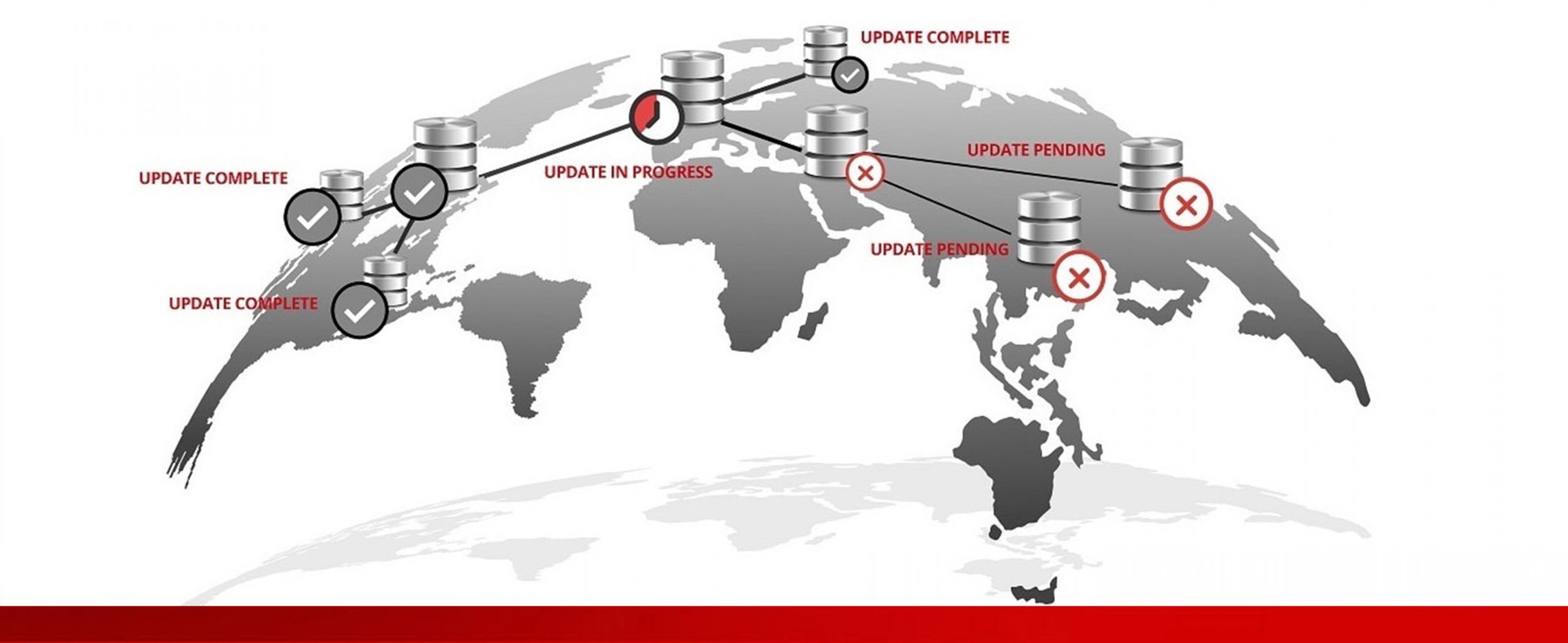
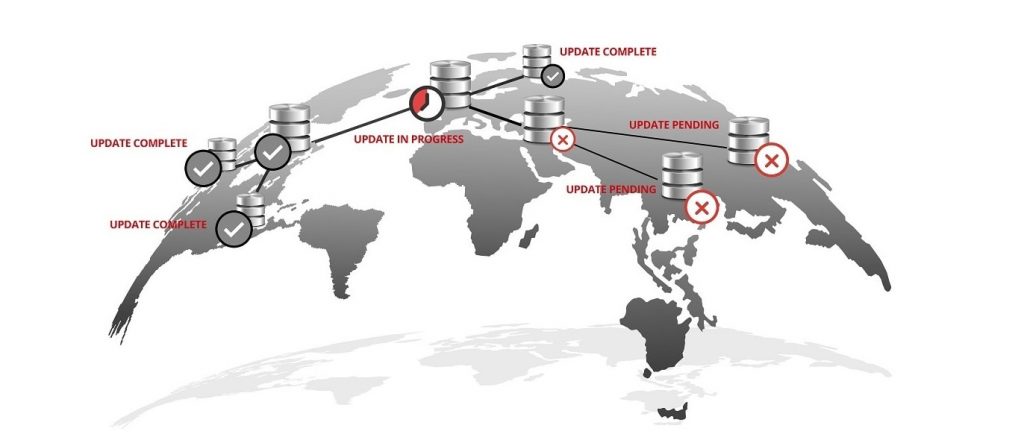
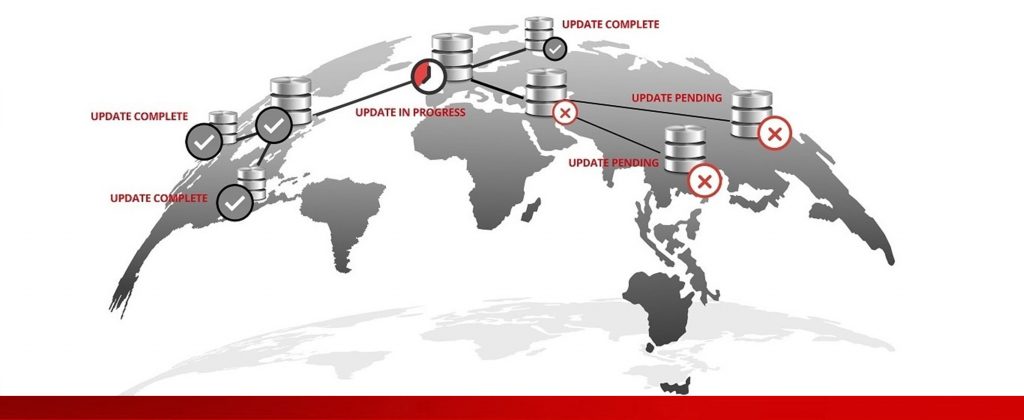
DNS Propagation is the process of the period of time it takes for a domain’s Name Servers to update, this process usually takes 24-48 hours to complete before changing efffect. It can also be referred to ISP (Internet Service Provider) nodes. These nodes have to update all over the world with the new Nameservers you’ve set your domain to.

These nodes are all over the world and they all need to be updated individualy, that is why it takes at least 24 hours to update.

Also, DNS caches can still show the old website for different people viewing it, it all depends on their location on earth.


WHY DOES IT TAKE SO LONG?
Let’s say you are currently living in Dublin, Ireland. You updated your name servers for a domain that’s hosted in Santa Monica, USA.

When anyone goes into the browser, and wishes to look up your website, they have to go through different servers in order to get to the server your website is stored at. People think that when you type in “Ilovetacotuesdayys.com”, the connection is instantly established between Dublin, Ireland and Santa Monica, USA. That is incorrect as it has to travel through many different connections, the path may vary each time.

This is the usual path:

Your browser -> Your computer -> Your Router -> Internet Provider -> Public DNS -> Domain Registrar -> DNS assigned to the domain you’re looking up -> Server on which the files are stored.


ARE THERE OTHER WAYS TO PASS DNS PROPAGATION?
You can point the domain to the destined IP address by changing the A record. You also have to set TLL to a minimal amount. When the record has been updated you can change the nameservers for your domain.

This will result in your domain being resolved from your previous host from the places where the propagation has not been completed yet and to a new one from the places where it has already been completed. IN this way you will avoid downtime as both hosts will not show you your new updated website.


HOW DO I CHECK IF DNS PROPAGATION HAS BEEN COMPLETED?
There really isn’t a way to tell when DNS records have been updated, there is websites that you can use to check but it all depends on your location in the world, your ISP and TTL applied to the domain. I have attached below a trustworthy DNS Checker that we sometimes use ourselves.

DNS Checkers work in a way that they provide a free check against any DNS Record in the world, they summarise the results they get and you receive it.

DNS Checker :
G Suite Toolbox: ​https://toolbox.googleapps.com/apps/dig/
WhatMyDNS: to check a domain name’s current IP address and DNS record information against multiple name servers located in different parts of the world: https://www.whatsmydns.net/#A/toolandplastic.ie

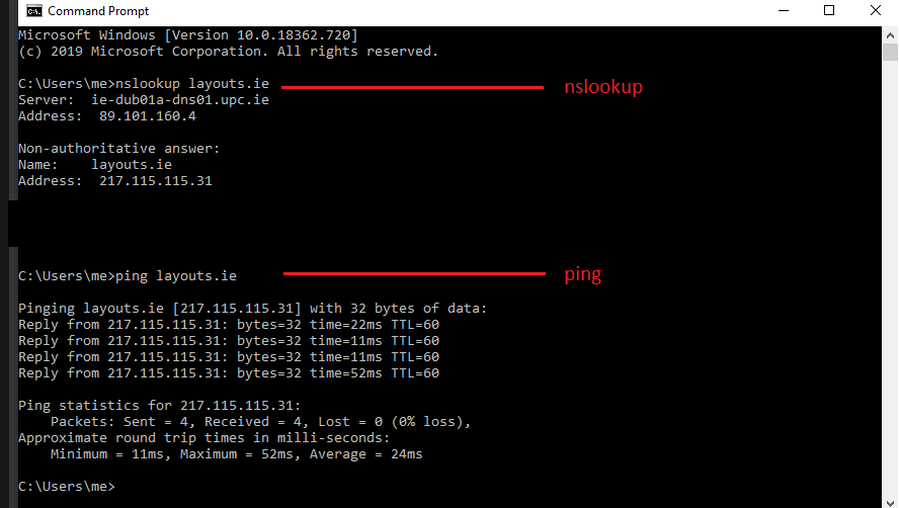
There is also another way of checking if DNS Propagation for yourself, for some people it might not be that simple to follow but I will try my best to explain it in this simple step by step. It consists of typing in commands into the command control panel.

After typing in any of the commands below, you can tell if the propagation has been complete for you if the result of these commands is the new IP Address. If it is not the new IP Address, that means DNS Propagation hasn’t been complete for you.

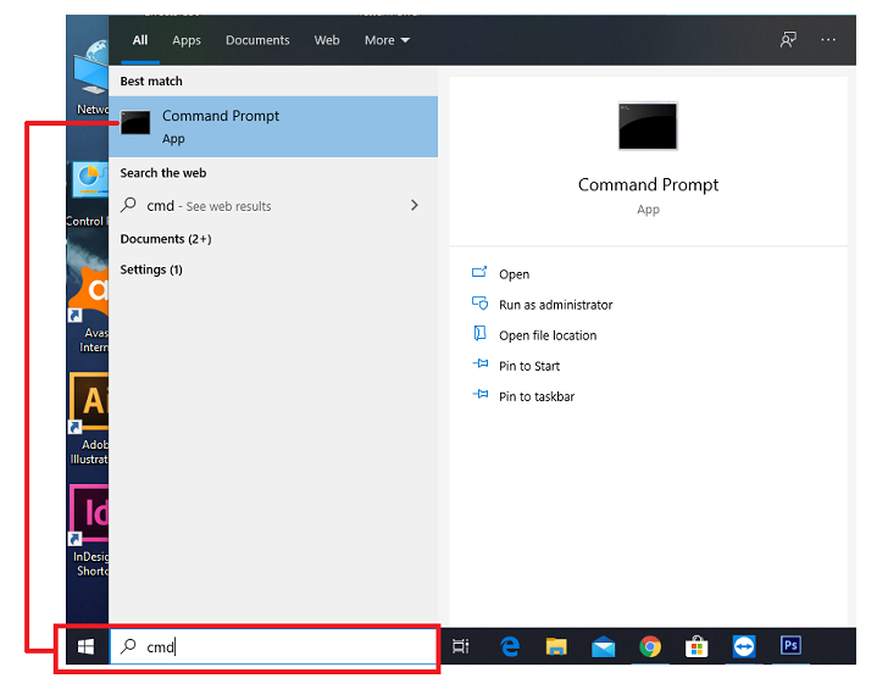
  • Click on the Start button and search “CMD” into your search bar and click onto the application.
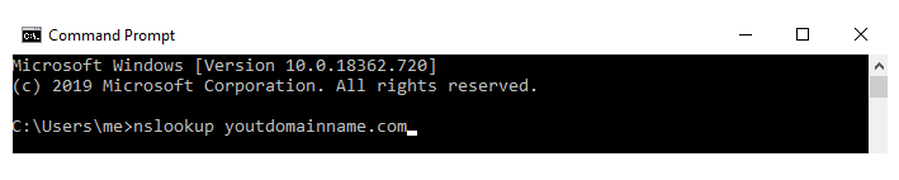
  • After clicking into it, please type the following command; ns.lookup (your domain.ie) and hit enter.
  • Or you could typ in Ping (your domain.ie) and hit enter
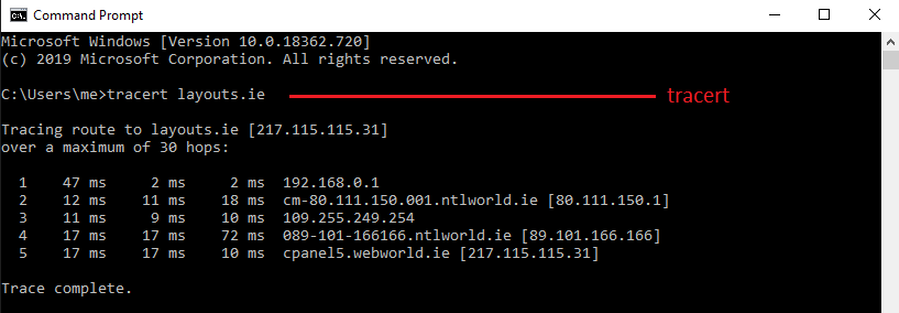
  • Or another option is to type in traceroute -I -e (your domain.ie)

Trace (also known as Traceroute or TRACERT in Windows) is a utility that traces a the route that IP (Internet Protocol) packets take from your computer to an internet host, showing how many hops the packet requires to reach the host and how long it takes to reach each router. If you’re visiting a Web site and pages are appearing slowly, you can use traceroute to figure out where the longest delays are occurring.

Please remember put just a tracert command in Windows


That’s been it, I hope I have explained the basics of DNS Propagation or most commonly called as updating DNS records.

If you ever do need your DNS records updated please pop us in an email to support@webworld.ie and we will change them for you!

You can also reach us at TEL: (01) 495 1112

SpamExperts

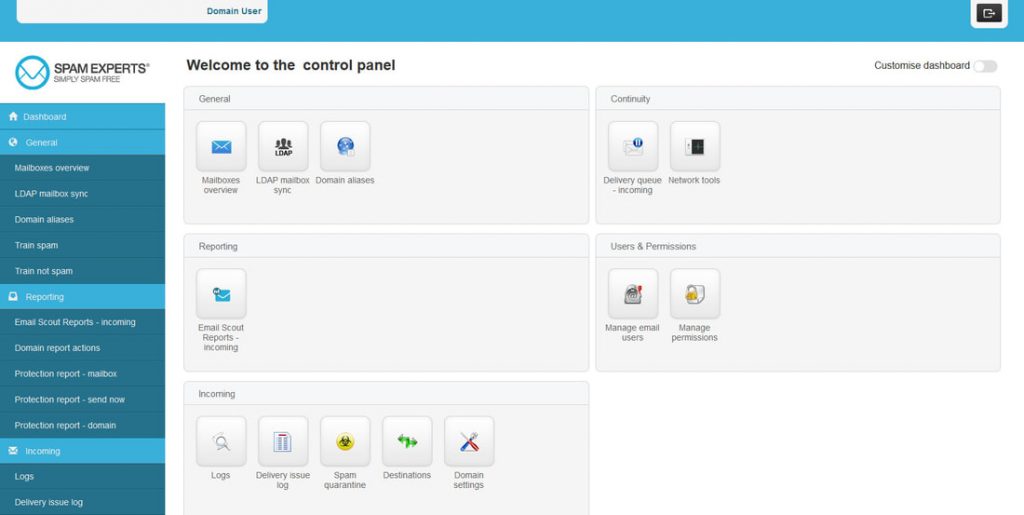
​SpamExperts inbound anti-spam system offers full inbox protection for millions of emails every second of the day, and increases security at the network level. In this way, end-users are offered maximum control and email continuity, with the perk of saving significant human and network resources.

​SpamExperts unmatched spam intelligence is a direct result from processing millions of emails every second of the day. Incoming email filters have an industry leading rate of nearly 100% filtering accuracy with close to 0 false positives.


Filter Quality and Efficiency.
SpamExperts applies its self-learning smart technologies to eliminate spam mail before it reaches your network.

Incoming Email Filtering.
Improve employee productivity and be in full control of your email flow

​​Secure your network from spam, virus, phishing and malware attacks.
SpamExperts applies its self-learning smart technologies to eliminate spam mail before it reaches your network.

Increased email continuity.
An extra protective layer of incoming filter to your email flow and infrastructure adds redundancy and continuity to your email delivery process. When the destination mail server is unreachable, SpamExperts filtering systems queue inbound email

Improve resource efficiency.
With our highly efficient first-level incoming filter defence running in front of your mail infrastructure, you will no longer need to deal with vast amounts of incoming email spam.​


INCREASED EMAIL CONTINUITY
​Improve resource efficiency your network from spam, virus, phishing and malware attacks SpamExperts applies its self-learning smart technologies to eliminate spam mail before it reaches your network.

​SpamExperts applies continuous improvements in secure data collection and analyses, instantly detecting new patterns and identifying derails. That accumulated intelligence is shared in real-time with all other users worldwide, assuring timely protection against new threats

FREE SPAMEXPERTS​ WITH OUR CLOUD HOSTING PLANS 3 & 4:

SHARED HOSTING + SPAM EXPERTS:

Hosting Plan 1 : SpamExperts – €59/year €44.95/year*
Hosting Plan 2 : SpamExperts – €59/year €44.95/year*
Hosting Plan 3 : Free SpamExperts Filtering
Hosting Plan 4 : Free SpamExperts Filtering

SSD HOSTING +SPAM EXPERTS:

Hosting Plan 1 : SpamExperts – €59/year €44.95/year*
Hosting Plan 2 : Free SpamExperts Filtering
Hosting Plan 3 : Free SpamExperts Filtering
Hosting Plan 4 : Free SpamExperts Filtering

 *Offer runs from 17th of November 2023 to 1st of December 2023


SECURE YOUR NETWORK FROM SPAM, VIRUS, PHISHING AND MALWARE ATTACKS
​Detect new spam and malware outbreaks immediately. Improve resource efficiency your network from spam, virus, phishing and malware attacks SpamExperts applies its self-learning smart technologies to eliminate spam mail before it reaches your network.

SpamExperts applies continuous improvements in secure data collection and analyses, instantly detecting new patterns and identifying derails. That accumulated intelligence is shared in real-time with all other users worldwide, assuring timely protection against new threats.


If you have any questions please feel free to email us at support@webworld.ie and we will be glad to help you out.

Spam Experts

Spam Experts on your emal!

SpamExperts inbound anti-spam system offers full inbox protection for millions of emails every second of the day, and increases security at the network level.

MORE

Life of a domain

THE LIFE OF A DOMAIN

​The domain has a very interesting life if you could say so, strange right? Thinking that a domain may have a life or anything besides that it hosts your services. It all starts off from the day you register it at your chosen web hosting company.


REGISTERED PERIOD
​The domain is brought to life by you registering it, for this article we will go with my domain which is ieattacoeveryday.com, from then on I pay the web hosting company for registering it and then it’s mine domain and I own all the rights to it.


Every year you pay a price to keep it alive, you can always renew it for more than 1 year if you don’t want it bothering you every year.


GRACE PERIOD
​Let’s say I forgot to renew my domain on the day of expiry, from then on it will go into a grace period which makes the domain in-active and makes your website go down with all your services attached to it as well. You can still renew for the same price, but some companies tend to put a late fee depending on how long you take to renew it.

Grace Period Lasts from 2 – 4 days.


REDEMPTION PERIOD
​If I still don’t renew my domain after the expiry period it goes into the redemption period, this is the worst period your domain can go into while you own it, it costs a huge amount of money (Ranging €250+) to make it active again as registrars tend to delete all the information about that domain to make it go available again after the redemption period in which it will be deleted.

Redemption Period Phase 1: Lasts 30 days.

Restoration Period Phase 2: Lasts 15-20 days.


DELETED AND RENEWED PERIOD
​The Final period in which the domain is deleted and put back into the domain pool in which it can be registered again.

Deletion Period: 4-8 days


HOW DOES WEB WORLD KEEP TRACK OF DOMAINS?
We always strongly recommend our clients to renew the domain at the earliest time they can to prevent it from getting into the Grace Period or the Redemption Period, we have multiple protocols set in our system to keep you reminded about the status of your domain, also logging into your client area and managing your domain will help you a lot too as you can gather valuable information from there.

You will receive emails about your domain expiring.

First Notice – 60 Days
Second Notice – 30 Days
Third Notice – 15 Days
Fourth Notice – 7 Days
Fifth Notice – 1 Day


If you do have any queries or questions please do not hesitate to contact us at support@webworld.ie or give us a ring at TEL: +353 14951112

Life cycle of a domain

Life of a domain

The domain has a very interesting life if you could say so, strange right? Thinking that a domain may have a life or anything besides that it hosts your services. It all starts off from the day you register it at your chosen web hosting company.

MORE

Web World’s Sustainability Success

Web World’s own green data centre

​At Web World, we appreciate that as high consumers of energy we have a responsibility to ensure that our sustainability strategies are a priority and constantly under review. How does a data centre become a sustainable business? We have discovered that with buy in from management, staff, and stakeholders, along with a willingness to look for alternatives and new processes, it is possible to become a sustainable and eco-friendly business. Look at our story below which describes the steps we have implemented to date. The results serve to spur us on to constantly improve and achieve more to protect our local community, country, and planet.


​ ​WEB WORLD’S SUSTAINABILITY SUCCESS

​1.) Our energy supplier is ​​Energia Ireland’s greenest energy provider. As a result, we use 100% sustainable green energy in our data centres.


2.) We are consistently improving our power usage effectiveness (PUE). Our current rating is estimated at 1.5 and by implementing the latest technology and practices we are aiming to achieve a rating of 1. This means that most of the energy delivered to our data centre is used for computing purposes and wasteful supplementary activities are eliminated.


​3.) Many customers are now looking for technology partners with a commitment to the green agenda. Clients of Web World data centres can enjoy peace of mind that their business information is being hosted in a sustainable data centre at a competitive price.


AN IMPORTANT STEP TOWARDS SUSTAINABILITY: GREEN ENERGY SUPPLY FOR WEB WORLD
​Our collaboration with Energia has been a significant step towards developing this sustainable business model. Energia is an award-winning provider of electrical energy and were 2 named Winners of the Green Energy Provider Award at the Green Energy Awards 2020 for a second time.


OUR CUSTOMERS ARE PART OF THIS SUCCESS
​Every time, a user accesses a website hosted by Web World or uploads data to the cloud we believe it is our responsibility to ensure this task is performed in the most sustainable manner possible. Our customers have their own sustainability goals and as their technology partner we are proud to be in a position to help them achieve these green standards.


SUSTAINABILITY POLICY
​Web World’s approach to sustainability is to do everything possible to ensure our energy consumption has a minimal impact on the environment. The nature of our business involves the consumption of large quantities of energy and our challenge is to build environmentally friendly initiatives into all aspects of our operation. We want to support our customers as they strive to implement their green agenda by providing best in class data centre facilities and customer service at an affordable price. We are proud that management and staff at Web World are fully committed to being part of a team providing sustainable digital services. Recent measurements of energy saving initiatives at Web World resulted in a saving of 60,000kg of CO2 emissions in a six-month period.


OTHER INVESTMENTS

Energy Saving Equipment
​Along with switching to an eco-friendly energy provider, we carried out a comprehensive inventory of our data centre equipment. We bid farewell to inefficient hardware and network components deemed heavy users of energy. These were replaced with sophisticated energysaving equivalents that minimise power usage and do not cause unnecessary oversupply. Our promise is that a green business can be profitable. Energy savings have reduced our expenditure which in turn is helping our company to operate more profitably increasing the value of our business and its attractiveness for future investors.


Re-Using Energy
Data centre servers produce a lot of heat. We have implemented a system whereby we can take this byproduct of our activities and recycle it. The result – Heat generated from our servers in data centre 2 is now harnessed and used to heat the building. A win win for everyone, reduction in heating bills and a green initiative.


CONCLUDING WORDS
​Our ongoing commitment is that Web World will continue to take advantage of ongoing technological developments to improve our energy efficiency and grow our green agenda. Our experience is that green does not necessarily mean expensive, and an eco-friendly business is a realistic goal. Web World is looking forward to working with clients with similar sustainability goals so that together we can contribute to a greener environment and a better future for Ireland.